
When you’re launching a SaaS, every little detail adds up to build trust. Using Gmail for a custom domain is one of those non-negotiable details. It’s the difference between looking like a serious business and a weekend project.
This setup lets you send emails as you@yoursaas.com right from the Gmail interface you already know and love, giving you instant credibility from the very first email you send.
Why a Custom Email Is a Must-Have for Your SaaS
First impressions count, especially when you’re trying to win over your first users. Imagine sending a welcome email or a trial expiration notice from an address like yoursaas123@gmail.com. It just doesn’t sit right, does it?
An address like that can immediately kill your credibility and make your business look amateur. Worse, it’s a massive red flag for spam filters, meaning your most important messages might never even land in your user’s inbox.
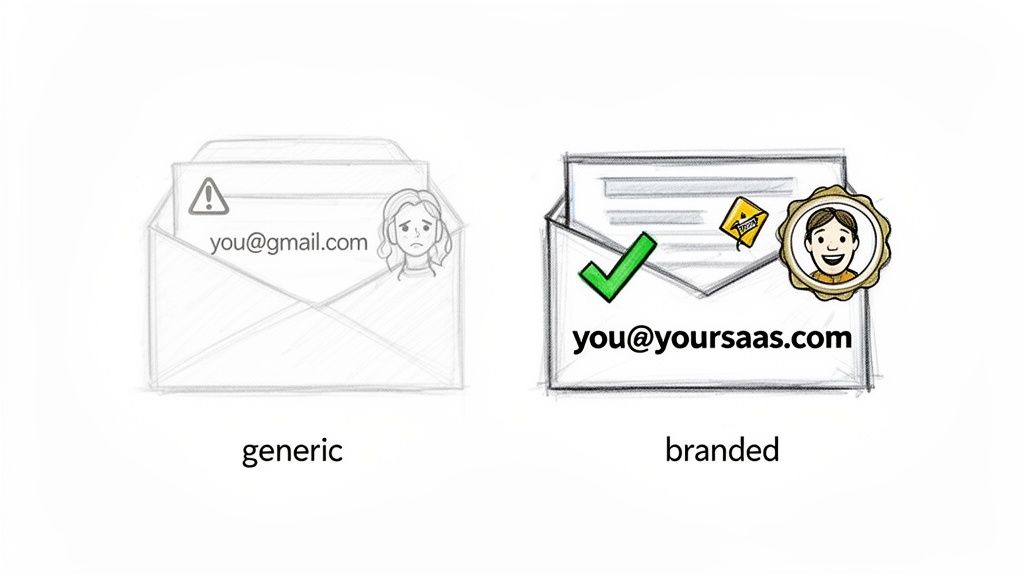
This isn’t just about looking professional; it’s a technical necessity for good email deliverability. Internet Service Providers (ISPs) and email clients are far more likely to trust emails coming from custom domains that are properly authenticated with things like SPF and DKIM records.
The Credibility Gap
Think about it from your user’s perspective. They’ve just requested a password reset. Which of these senders makes them feel more secure?
support@happypanda.aihappypandasupport@yahoo.com
It’s a no-brainer. A branded email address is a core part of your customer communication. It reinforces your brand with every single interaction and quietly signals that you’ve invested in doing things the right way.
In Southeast Asia’s fast-growing tech scene, this is a key move that sets you apart. A 2018 study on ASEAN businesses revealed that 56% of MSMEs were still relying on personal email accounts. For a bootstrapped founder, making the switch to a custom domain can boost email deliverability by as much as 30%—a massive edge in a crowded market. You can read more about this digital shift and its impact on businesses in the region.
A custom email domain isn’t just for looks. It’s a technical requirement for building trust and making sure your emails actually get delivered. It’s one of the best low-cost, high-impact investments you can make in your SaaS early on.
Google Workspace vs. The Free Forwarding Method
So, you want to use Gmail for your custom domain. Smart move. But now you’re at a fork in the road. One path leads to Google Workspace, the official, all-singing, all-dancing paid solution. The other is a scrappier, more bootstrapped route: the free email forwarding workaround.
For a founder watching the pennies, this isn’t a cut-and-dried decision. It’s a classic head-versus-heart debate between cost, complexity, and what you’ll need down the line.
Google Workspace is the premium, straightforward option. You pay a monthly fee, and in return, you get a dedicated business account for your domain. This isn’t just an email address; it’s a proper inbox with its own storage, plus full access to Google’s suite—Drive, Calendar, Meet, the lot. It’s the turn-key solution, built to just work.
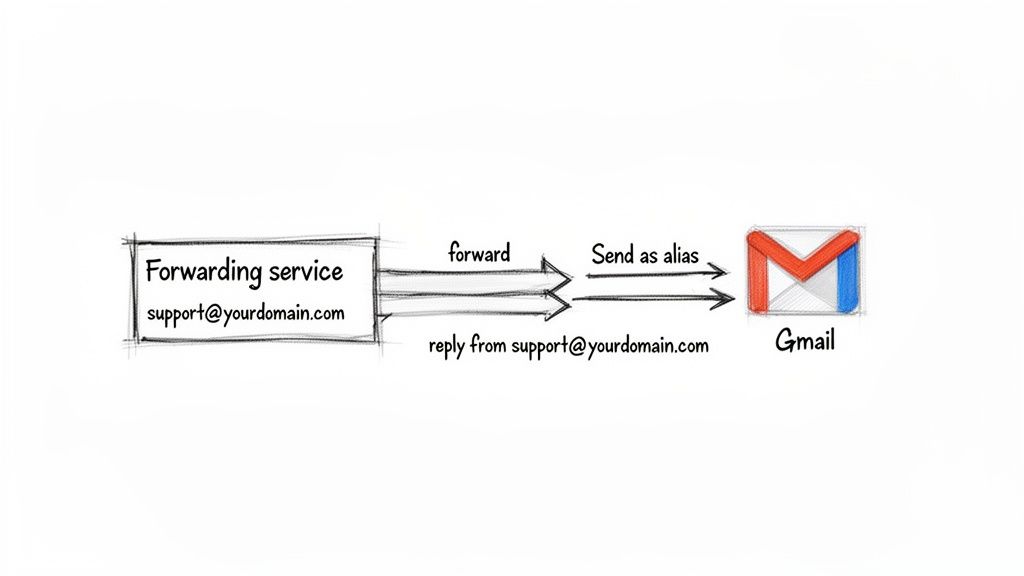
Then there’s the free forwarding method. This is the clever, bootstrapped alternative. It involves using a service like Cloudflare Email Routing to catch emails sent to hello@yoursaas.com and punt them over to your personal yourname@gmail.com inbox. You then set up a ‘Send as’ alias to reply from your professional address, so your customers are none the wiser.
The Cost and Complexity Trade-Off
Let’s get straight to it: the biggest difference is the price tag. Google Workspace plans start at around £5 per user per month. It’s not a huge sum, but it adds up, especially as you grow. The forwarding method? It’s completely free. That’s an incredibly tempting offer when you’re in the early days.
But what you save in pounds, you often pay for in time.
Setting up Google Workspace is a guided, almost paint-by-numbers process. The free workaround, on the other hand, demands a bit more technical tinkering. You’ll need to get your hands dirty with DNS records for the forwarding part and then set up separate SMTP credentials to handle sending emails out. It’s not rocket science, but it definitely has more moving parts and more places where things can go wrong.
It really boils down to this: is your time better spent saving a few quid on a more technical setup, or would you rather pay for a solution that works flawlessly right out of the box?
Reliability and Scalability
This is where Google Workspace really flexes its muscles. Because it’s a native, integrated system, email deliverability is rock-solid. Your emails are fired off directly from Google’s powerful servers and are properly authenticated from the get-go. This drastically reduces the chances of your important messages getting cosy in a spam folder—a critical factor for any SaaS.
The forwarding method can be reliable, but it does introduce another link in the chain. Your deliverability now hangs on both your forwarding service and the SMTP provider you’ve chosen. It works well when configured perfectly, but it’s just a bit more fragile.
And what about growth? As your team expands, managing a web of forwarded aliases and ‘Send as’ settings becomes a real headache. With Google Workspace, adding and managing new users is centralised and painless.
To make the choice a bit clearer, I’ve put together a simple comparison table from a bootstrapper’s point of view.
Google Workspace vs. Forwarding: A Bootstrapper’s Comparison
This side-by-side look should help you figure out which path makes the most sense for where you are right now.
| Feature | Google Workspace (Paid) | Forwarding Workaround (Free/Low-Cost) |
|---|---|---|
| Monthly Cost | Starts at approx. £5/user | £0 |
| Setup Complexity | Low (Guided setup wizard) | Medium (Requires DNS & SMTP setup) |
| Email Deliverability | Excellent (Native Google infrastructure) | Good (Depends on proper configuration) |
| Included Tools | Full suite (Drive, Calendar, Meet) | None (Uses your personal accounts) |
| Scalability | High (Easy to add/manage users) | Low (Becomes complex with a team) |
Ultimately, the right choice really depends on your current stage. If you’re pre-launch or the budget is incredibly tight, the free forwarding method is a fantastic way to look professional without spending a penny.
But the moment you have paying customers and your reputation is on the line, that small monthly fee for Google Workspace quickly becomes a very worthwhile investment in reliability, scalability, and pure peace of mind.
Setting Up Google Workspace for Your Custom Domain
If you’re serious about your SaaS, going with Google Workspace is the no-brainer path for using Gmail with your custom domain. Forget the workarounds; this is the “it just works” solution for founders who value their time and need something reliable from day one. It’s not just an email address—it’s the entire engine room for your business, bundling in shared calendars, cloud storage, and collaboration tools.
Google does a pretty good job of walking you through the setup, but there’s always one part that makes founders a bit twitchy: configuring your domain’s DNS records. Don’t worry, it sounds far more technical than it actually is. Let’s break it down.
Choosing Your Plan and Proving You Own Your Domain
First things first, head over to the Google Workspace site and pick a plan. For most bootstrapped founders, the Business Starter plan is the perfect sweet spot. It has everything you need to look professional without breaking the bank.
During signup, Google will ask for the custom domain you already own (like yoursaas.com).
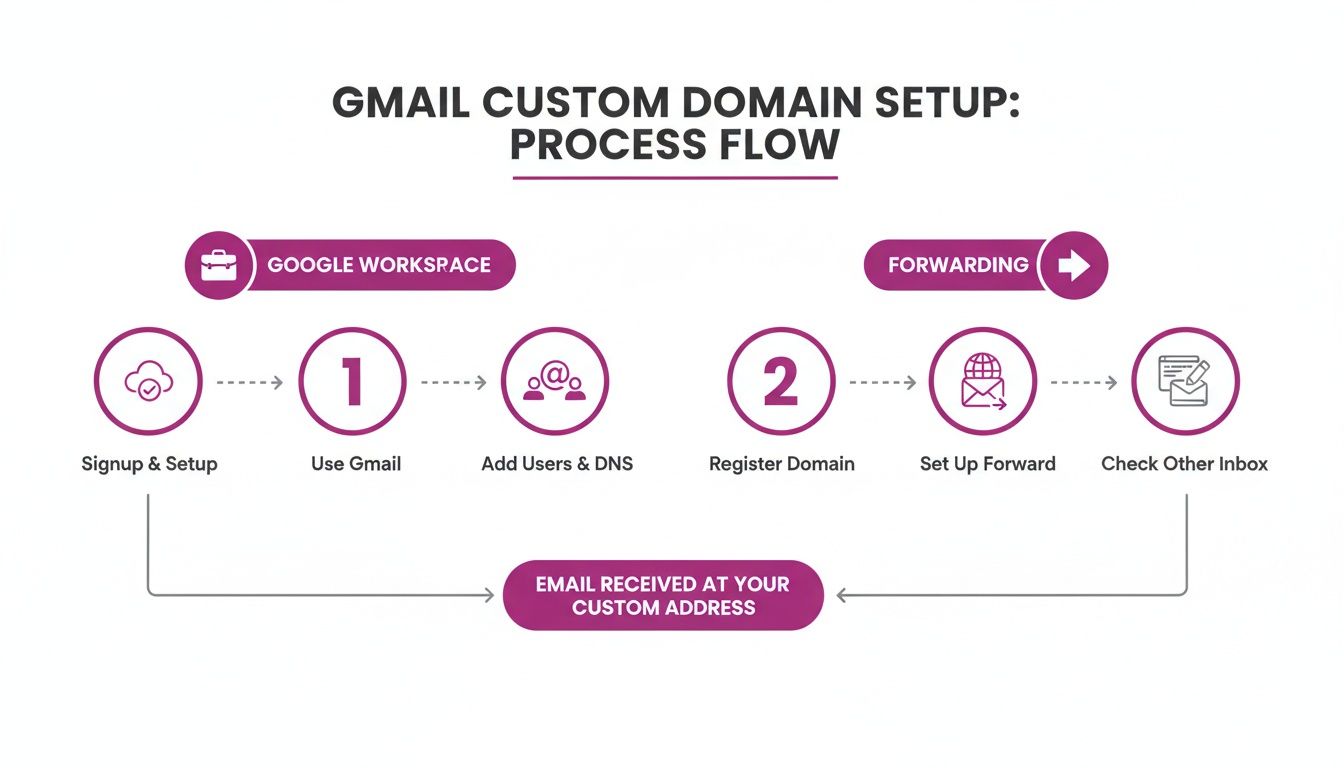
After you’ve created your primary account (e.g., you@yoursaas.com), you’ll hit a crucial step: proving you’re the actual owner of that domain. Google handles this by giving you a unique TXT record to add to your domain’s DNS settings. Think of it as a digital secret handshake. You add their code to your registrar, they check it, and just like that, they know the domain is yours.
Getting Your DNS Records Pointed at Google
With your domain verified, it’s time to tell the internet where to send your email. This means updating a few records at your domain registrar—wherever you bought your domain, like Namecheap, GoDaddy, or Cloudflare.
You’ll be dealing with three main types of records:
- MX (Mail Exchange) Records: These are the big ones. They’re basically the postal address for your email. You’ll need to delete any existing MX records and replace them with a list of new ones that Google provides. This is what routes all incoming mail for
@yoursaas.comto Google’s servers. - SPF (Sender Policy Framework): This is a simple TXT record that helps prevent spammers from spoofing your email address. It tells other mail servers, “Hey, only emails coming from these specific servers are legitimate.” It’s a massive factor in keeping your emails out of the dreaded spam folder.
- DKIM (DomainKeys Identified Mail): Think of this as a digital signature on every email you send. It adds another layer of verification, proving the message hasn’t been messed with in transit. Receiving servers check this signature, giving your emails another stamp of authenticity.
Getting these settings right is what separates the pros from the amateurs. The 2018 ASEAN Digital Economy report found that while 56% of businesses used basic digital tools like email, a mere 34% had professional setups with websites. Google Workspace bridged that gap, especially for small businesses needing to ensure their outreach, trial reminders, and updates actually land in front of customers. You can read more about these regional MSME findings if you’re curious.
Key Takeaway: Correctly configuring MX, SPF, and DKIM records is non-negotiable. It’s the technical foundation that builds your domain’s sending reputation and ensures your important customer emails are actually delivered.
Once you’ve updated these records, give it a few hours. The changes need to propagate across the internet, which isn’t instantaneous. After that, you’re good to go. You can log in to Gmail with your new professional email and start acting like the credible SaaS founder you are.
This also sets you up perfectly for connecting your tools. For instance, with a solid email foundation, you can explore HappyPanda’s powerful integrations to link customer feedback directly to your new inbox. It’s all about building a seamless workflow.
How to Set Up the Free Email Forwarding Method
For the truly bootstrapped founder watching every pound, the free forwarding method is a clever way to get a professional email address without paying for Google Workspace. It’s a bit of a workaround, but it gets the job done.
This approach uses a couple of third-party services to receive and send emails, all while you continue to operate from your personal Gmail inbox. It’s a two-part process: first, you’ll forward incoming mail to your Gmail, and second, you’ll configure Gmail to send replies from your custom domain address.
This setup gives you the professional look of support@yoursaas.com without the monthly cost. It’s perfect for early-stage validation or when your budget is razor-thin.
Part One: Receiving Emails with a Forwarding Service
The first half of this puzzle is getting emails sent to you@yourdomain.com to land in your personal Gmail inbox. For that, you’ll need a free email forwarding service to act as the middleman.
A couple of popular and reliable options spring to mind:
- Cloudflare Email Routing: This is a fantastic choice if you already use Cloudflare for your DNS. It’s robust, free, and slots right into your existing setup.
- ImprovMX: Another excellent free service that specialises in, you guessed it, email forwarding. It’s known for being incredibly straightforward to get running.
Setting these up is pretty simple. You’ll sign up, add your domain, and they will give you a few MX records to pop into your domain registrar’s DNS settings. This basically tells the internet, “Hey, when someone sends an email to this domain, route it over to this forwarding service first.” The service then catches the email and punts it straight to the personal Gmail address you specified.
Part Two: Sending Emails from Your Custom Domain
Receiving emails is only half the battle, right? You need to be able to reply from your professional address, not your personal one. This is where the ‘Send mail as’ feature inside your Gmail settings comes into play.
To make this work, you need an SMTP (Simple Mail Transfer Protocol) service to handle the actual sending. Think of it as your own private postman. Many email marketing tools offer generous free tiers that include SMTP credentials. A service like Brevo, for example, lets you send up to 300 emails per day for free.
Here’s the game plan for getting it configured:
- Get Your SMTP Credentials: First, sign up for a service like Brevo and authenticate your domain. They’ll give you a server address, a username, and an API key (which acts as your password).
- Configure Gmail: Hop into your Gmail settings, head to the
Accounts and Importtab, and find theSend mail assection. Click onAdd another email address. - Enter Your Details: A little pop-up window will appear. Punch in your name and your custom email address (
you@yourdomain.com). In the next step, you’ll input the SMTP server details you got from your provider.
Once you’ve verified your address, a new option will appear in your “Compose” window. It’s a simple dropdown that lets you choose whether to send from your personal address or your slick new custom domain alias.
A quick word of caution: while this method is brilliant for your wallet, it does introduce more moving parts. Your email deliverability now depends on the reputation of both your forwarding service and your SMTP provider. It’s a fantastic solution for starting out, but just be mindful of its limitations as you start to scale.
Advanced Email Tips for SaaS Founders
Alright, so your basic Gmail for custom domain setup is live. What’s next? Now it’s time to stop thinking like a tinkerer and start acting like a professional SaaS. These next steps are all about building a more robust and scalable email presence.
First up, let’s talk about DMARC (Domain-based Message Authentication, Reporting & Conformance). Think of it as the final piece of the email authentication puzzle, working alongside SPF and DKIM. DMARC gives receiving servers a clear set of instructions on what to do if a message fails those checks. It’s a powerful way to shut down spoofing attempts and protect your brand’s reputation from day one.
Getting this right isn’t just a security checkbox; it directly impacts your email deliverability. A solid DMARC record helps ensure your welcome emails and password resets actually land in the inbox, not the spam folder.
Managing Essential Email Aliases
Every SaaS needs a few standard points of contact. You can’t have every billing question, support ticket, and partnership inquiry flooding your personal inbox. That’s a recipe for chaos. This is where aliases save the day.
Here are the non-negotiables you should set up immediately:
- support@yourdomain.com for all user help and technical questions.
- hello@yourdomain.com or info@yourdomain.com for general inquiries and partnerships.
- billing@yourdomain.com for payment-related issues and subscription management.
How you handle these depends on your setup. If you’ve gone with Google Workspace, using Google Groups is the way to go. You can create a “Support” group, add team members as you grow, and manage conversations collaboratively. If you’re using the free forwarding method, you’ll just create a new forwarding rule for each alias, pointing them to the right personal inbox.
Your email setup is the bedrock of your customer communication strategy. A properly configured system with clear aliases ensures that user feedback and critical alerts are organised, actionable, and never missed.
This kind of organisation is the foundation for more advanced customer engagement. Once your email system is reliable, you can confidently start sending automated sequences like trial reminders and onboarding tips. For bootstrapped founders, streamlining this is everything, which is why platforms that offer automated email sequences for customer engagement are so damn valuable.
Beyond the technical setup, you need to think about engagement. For anyone looking to really nail their outreach, learning how to increase your email open rates is a great next step.
Ultimately, a polished email infrastructure makes everything else easier. It ensures your welcome emails get delivered, your support requests are handled efficiently, and your marketing campaigns have the best possible chance of success. It’s a small investment of time that pays off big in user trust and operational smoothness.
FAQs: Your Burning Questions Answered
Setting up a professional email address can feel like you’re defusing a bomb, especially when you’re just starting out. One wrong move and… poof? Nah, it’s not that dramatic. Still, a few common questions always pop up. Let’s clear the air so you can get back to building.
Can I Just Use My Personal Gmail Account?
Short answer: it depends on which path you choose.
If you’re going the free forwarding route, then absolutely. That’s the whole point—all your professional emails (you@yourcoolstartup.com) get funnelled directly into your personal you.startup.founder@gmail.com inbox. You just reply using an alias to keep up appearances.
But if you opt for the official Google Workspace setup, you’re creating a completely separate, brand-new business account. This account lives on its own with a dedicated login, inbox, and storage. You can’t just flip a switch and turn a personal @gmail.com account into a Workspace one; they’re two different beasts entirely.
Is Google Workspace Really Worth It for a Solo Founder?
This is the classic “spend money to save time” dilemma. If you’re pre-launch, bootstrapping hard, and just need to look legit, the free forwarding trick is a brilliant move. It costs nothing and gets the job done.
The moment you start getting real customer traction or even think about bringing on a freelancer, that small monthly fee for Workspace starts looking like a bargain. The sheer reliability, dead-simple setup, and integrated tools like shared calendars and drives just work. No headaches, no weird delivery issues.
For most founders, the tipping point comes when customer communication is no longer just an afterthought. That £5-£10 a month for Workspace quickly becomes a no-brainer for operational sanity.
What if I Mess Up the DNS Records?
Relax, you can’t permanently break the internet. Misconfiguring your DNS records is a common fear but it’s always fixable.
If you get the MX records wrong, the worst-case scenario is you won’t receive emails at your custom domain. Your emails are just floating in the ether, waiting for you to point them in the right direction. No data is lost, it’s just not arriving.
If you fumble the SPF, DKIM, or DMARC records, your outgoing emails might start landing in people’s spam folders. Again, annoying but not a catastrophe. The good news is that none of these changes are set in stone. Just pop back into your domain registrar’s settings, correct the entries, and everything will sort itself out, usually within a few hours.
Getting your emails delivered is step one. Step two is actually getting useful feedback from them. To learn more, check out our guide on how to use an embedded survey in email to get insights without annoying your users.
Ready to streamline your entire customer communication stack? With HappyPanda, you can manage feedback, email sequences, onboarding, and more from a single, affordable platform built for bootstrappers. Start your free 14-day trial today!